Installation
Attune is easy to install. There are two components: the license server (Sentinel RMS) and Attune itself.
You can download Sentinel RMS and Attune at www.ata-e.com/software/ata-software.
Sentinel RMS Installation
Sentinel RMS is a robust, commercial client-server-based licensing system from Thales that can serve multiple licenses for multiple software products simultaneously. The server typically resides on a central computer. The client software such as Attune will reside on computers that will be utilizing the software. The client computer may or may not be the same as the license server. It can also be on a different software platform than the client.
Sentinel RMS installation is straightforward. Detailed installation instructions are shipped with the Sentinel RMS package available from ATA’s website. This section highlights the basics of the installation process.
Installing Sentinel RMS
On Windows the Sentinel RMS package is an installer executable. As such, it must be installed by someone with administrator privileges. ATA recommends that the default selections be used during the installation.
On Linux the Sentinel RMS package is a gzipped tar file. Extracting this file will create an ata_rms directory with several files. Sentinel RMS does not need to be installed as root, but root privileges are needed to run the server. The Sentinel RMS documentation provides details about the setup process.
Environment Variables
All Sentinel RMS clients need a way to determine where the server is running. By default, the client will scan the subnet that your client system is connected to and will identify any Sentinel RMS servers running on your subnet. It will then contact each until the license request is satisfied or it has run out of servers. You can control the order in which the servers are contacted through an environment variable called LSHOST. Set the environment variable to the hostname of the server, separated by a tilde (~). The server name(s) should be prepended by the name “no-net”. For example, if you have two servers, set it to
no-net~server1~server2
where “server1” and “server2” are the names of the license servers.
If you only have one server and wish to bypass the network scan by the client, you can use the environment variable LSFORCEHOST. This is also required if your license server is on a different subnet from the Attune client computer. ATA recommends using LSFORCEHOST if possible, as it speeds up the initial license checkout. You can only specify a single server with this environment variable. For example, you can set it to
server
By default, the license server and client communicate on port 5093. If your Sentinel RMS server is running on a non-default port, you can configure the client to communicate on this port by setting the LSPORT environment variable to the port number to use.
On Windows, the environment variable can be set in Control Panel, typically in System. On Unix/Linux, you can set the environment variable with setenv or by using export, depending on your shell. Please ask your system administrator or refer to your operating system documentation for more details on how to set environment variables.
Checking Your License Status
You can use the WlmAdmin application included in the top-level IMAT directory to check the status of the licenses. When the GUI opens, open Subnet Servers in the tree on the left. Under each license server, the individual licenses will be listed. Clicking on a license will display statistics about that license, including who is using it and how many are available.
Adding Or Updating Your License File
For a complete set of instructions on adding or updating your license file, please refer to the Sentinel RMS user guide. The instructions here simply demonstrate the basic process.
From Windows, open the RMS License Administration application (WlmAdmin) located in the Attune installation. It is located in Start | Programs | ATA Engineering | Sentinel RMS Licensing | RMS License Administration. Once the application starts, install the license by right-clicking on the appropriate license server and following the menus as shown in the figure below. The license will be immediately available.
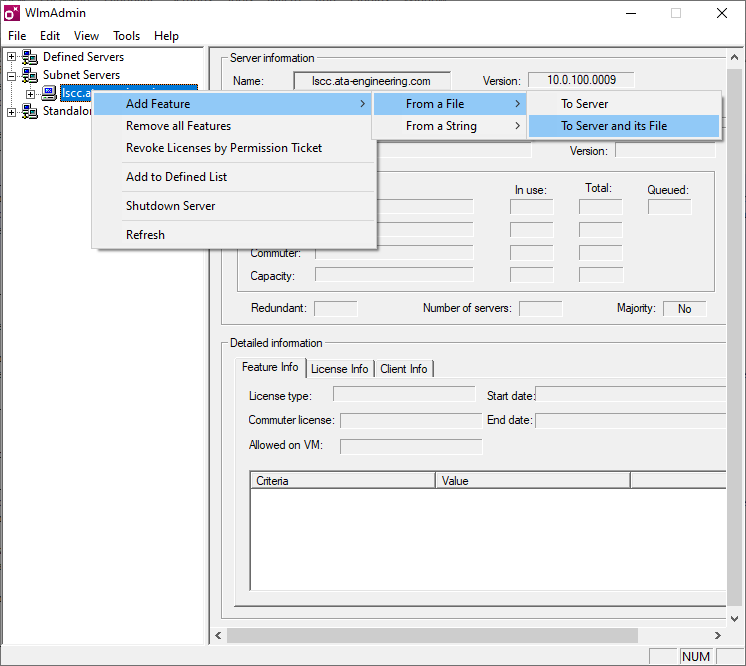
RMS License Application Showing Path to Install License
On Linux, your system administrator can install the license file by adding the license text to the lservrc file in the license server installation directory.
Attune Installation
There are two different versions of Attune, both with their own installers. There is the version that requires MATLAB, and a new standalone version that just requires the MATLAB Compiler Runtime files. Below are the instructions for installing either version.
MATLAB Version
Using the Attune Installer to Install Attune for MATLAB
The Attune installer prompts for an installation directory and automatically installs Attune into that location. At the end of the installation, the installer will automatically add Attune to the MATLABPATH. Any other instances of Attune that are in this file will be commented out. For reference, the MATLABPATH is stored in /toolbox/local/pathdef.m in the MATLAB root directory. A back-up copy of the path file will be made with the *.bak extension after the change is complete.
You can opt out of this and manually add Attune to your MATLABPATH by unchecking the “Add Attune to MATLAB’s Path” option at the end of the installation. Instructions for manually adding Attune to your path are included below.
If you install Attune into MATLAB’s toolbox directory and you are using the toolbox path cache, you will need to update it. You can do this in MATLAB in Settings, General. There is a section titled, “Toolbox path caching.” Simply click on the button that says, “Update Toolbox Path Cache.” Alternately, you can also disable the toolbox path cache by unchecking the box labeled, “Enable toolbox path cache.”
It is recommended to avoid installing Attune on a network drive. The VTK initialization at Attune startup requires enough I/O that it will significantly increase the startup time if it has to occur over a network connection.
Manually Putting Attune in Your Path (setting your MATLABPATH)
To use Attune, you must arrange for the Attune directory to be in your MATLAB search path. This can be done by an individual user, or it can be set up by the system administrator for all MATLAB users. Two methods for setting up the path are given below, and experienced MATLAB users will know of other ways. (In the following instructions, %MATLAB% refers to your top-level MATLAB directory, and %ATTUNE_INSTL% refers to your top-level directory where Attune is installed.)
Option 1 (does not require sysadmin)
Create a file called startup.m (or edit an existing one). Put the following command in this file:
addpath %ATTUNE_INSTL% -end
(but use the actual path in place of %ATTUNE_INSTL%). This will add Attune to the end of your MATLAB path.
Option 2 (requires sysadmin)
Edit the file %MATLAB%\toolbox\local\matlabrc.m and insert the following command in this file (after the default path is set):
addpath %ATTUNE_INSTL% -end
(but use the actual path in place of %ATTUNE_INSTL%). This will add Attune to the end of the MATLAB path for all users. This change will need to be repeated if you update or reinstall MATLAB.
Option 3 (recommended; requires sysadmin)
Edit the file %MATLAB%\toolbox\local\pathdef.m and insert a line for the Attune directory. The new file will look something like this:
function p = pathdef

<lines omitted...>

% PATH DEFINED HERE -- Don't change this line.

p = [...
   '$toolbox\matlab\general:',
   <lines omitted...>
   '$toolbox\matlab\demos:',...
   '$toolbox\local:',...
   '$toolbox\tour',...
   '%ATTUNE_INSTL%:',...
   ...
   ];

p = [userpath,p];
Use the actual path name (e.g., C:\matlab\toolbox) for %ATTUNE_INSTL%.
NOTE: A disadvantage of this method is that any MATLAB upgrade or new installation will overwrite this file, so the change will need to be repeated.
Standalone Version
The standalone version of Attune can be installed which does not require MATLAB. Instead, it uses the MATLAB Runtime. Like the MATLAB version of Attune, this version is also installed with a standalone installer. The installer prompts for an installation directory and automatically installs Attune into that location. Attune can then be launched by selecting the Attune icon from the Start Menu.
This version requires that the MATLAB Runtime (MCR) be installed. The installer for these files is available from the ATA website (www.ata-e.com).